DooFlix Not Working? Fix buffering, crashes, APK errors, playback issues, search problems, subtitles, and common device issues fast.
Why Is DooFlix Not Working?
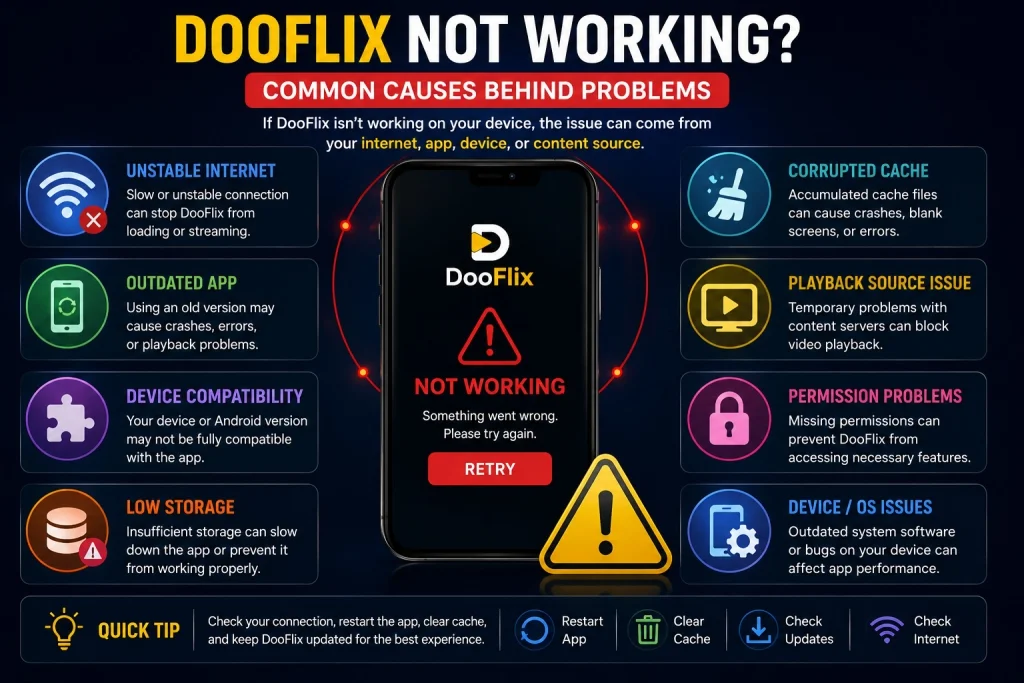
There is no single reason why DooFlix may stop working. Common causes include:
- Unstable internet connection
- Outdated application version
- Incompatible APK
- Corrupted app cache
- Insufficient storage
- Temporary playback-source problems
- Device compatibility issues
- Incorrect permissions
- Outdated Android or TV software
- Problems with an Android-compatible environment on PC
Before making major changes, identify exactly what is failing. For example, an app that opens but cannot play videos requires a different solution from an APK that will not install.
1. Check Your Internet Connection
A stable internet connection is one of the first things to check when DooFlix is not loading or videos keep buffering.
Try opening another website or application that requires an internet connection. If other services are also slow, the problem may be your network rather than DooFlix.
Try These Steps
- Restart your Wi-Fi router.
- Reconnect your device to Wi-Fi.
- Move closer to the router.
- Try another network if available.
- Avoid downloading large files while streaming.
- Use a wired connection on compatible PC or TV setups.
If everything else works normally but DooFlix does not, continue with the next troubleshooting steps.
2. Restart the DooFlix App
Temporary application errors can sometimes be resolved simply by closing and reopening the app.
On Android:
- Exit DooFlix.
- Open recent applications.
- Remove DooFlix from the recent-apps list.
- Wait a few seconds.
- Open the application again.
If the application is frozen, you can also use the device’s app settings to force-stop it before launching it again.
3. Clear DooFlix Cache
A corrupted or oversized cache can sometimes cause slow loading, crashes, or unusual application behavior.
On many Android devices, you can find the option through:
Settings → Apps → DooFlix → Storage → Clear Cache
The exact menu names vary between Android manufacturers.
Start with Clear Cache rather than immediately clearing all application data. Clearing data can remove locally stored settings, history, or other saved information.
After clearing the cache, open DooFlix again and test the problem.
4. Check for a DooFlix Update
An outdated application can become incompatible with newer operating-system versions or other components.
Check whether a newer compatible DooFlix release is available from the source you use.
Before installing an update, verify:
- Version number
- Android compatibility
- File source
- File size
- Release information
Do not download an APK simply because a website labels it as the “latest version.” Verify the file and source first.
5. DooFlix APK Is Not Installing
If your problem occurs before the app even opens, you may be dealing with an APK installation issue.
Check Android Compatibility
The APK may require an Android version that your device does not support.
Check the requirements associated with the particular release.
Check Available Storage
A device with very little free storage may not be able to complete an installation.
Remove unnecessary files or applications if storage is nearly full.
Check the APK File
An incomplete or corrupted download can cause installation errors.
If the file appears suspicious or does not match the expected version and size, do not repeatedly attempt to install it.
Check Installation Permission
Android may require permission for the browser or file manager being used to install an APK from outside a standard app marketplace.
Only grant this permission when you trust the source and understand what you are installing.
For a detailed walkthrough, see our How to Install DooFlix APK on Android guide.
6. DooFlix Opens but Shows a Blank Screen
A blank or black screen can have several possible causes.
Try the following:
- Close and reopen the app.
- Check your internet connection.
- Clear the application cache.
- Restart your device.
- Check whether a compatible update is available.
- Try another available title.
If other applications work normally but every DooFlix screen remains blank, the issue may be related to the installed version or device compatibility.
7. DooFlix Videos Are Not Playing
If the application opens normally but videos do not start, check whether the issue affects one title or everything you try to play.
One Title Does Not Play
The problem may be related to that particular content source.
Try another available title if possible.
Multiple Titles Do Not Play
Check your internet connection, restart the application, and verify that your installed version is compatible with your device.
If the application provides multiple playback sources, another available source may work differently.
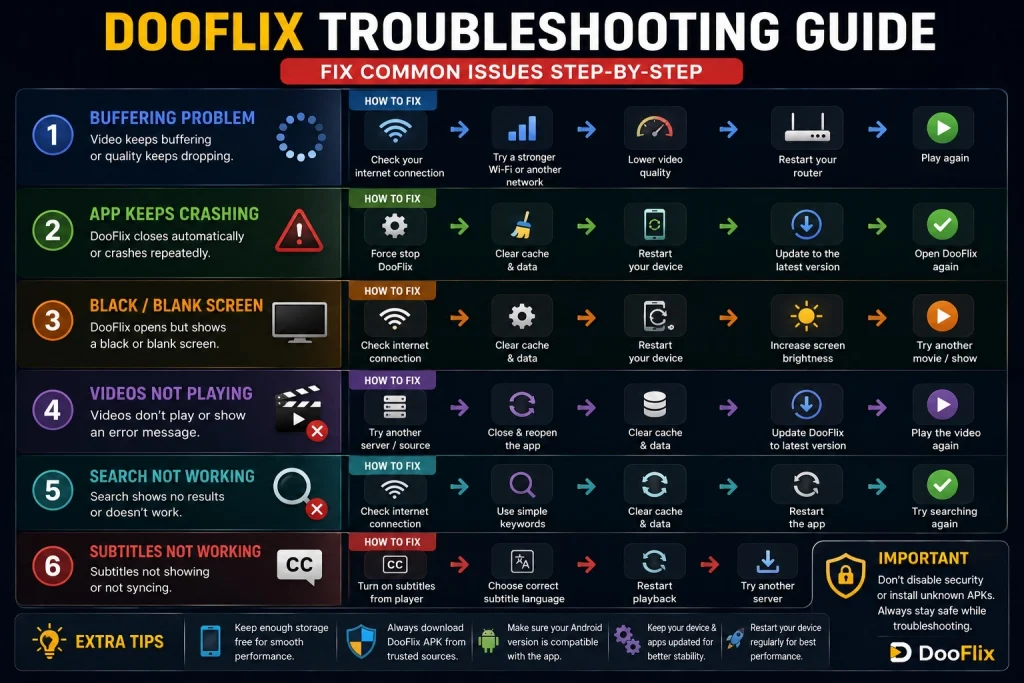
8. DooFlix Keeps Buffering
Buffering occurs when the video cannot receive enough data quickly enough for continuous playback.
Possible causes include:
- Slow internet
- Network congestion
- High video quality
- Unstable Wi-Fi
- Playback-source problems
- Heavy network usage on your device
How to Reduce Buffering
Try lowering the video quality if the player provides quality options.
For example, switching from a very high resolution to a lower resolution can reduce bandwidth requirements.
You can also close other applications using the network and restart your router if necessary.
10. DooFlix Search Is Not Working
Frequent crashes can result from compatibility problems, insufficient device resources, corrupted cache, or an application bug.
Try these steps:
- Restart your device.
- Clear DooFlix cache.
- Check available storage.
- Close unnecessary applications.
- Check the Android version.
- Verify whether a compatible update is available.
If the crashes started immediately after installing a new version, compatibility with your particular device may be the issue.
10. DooFlix Search Is Not Working
If search does not return results, first check your internet connection.
Then try a simpler search term.
For example, instead of entering a complete title with additional information, search using the main title only.
Also try restarting the app if search remains unresponsive.
If categories and other sections work but search does not, the problem may be limited to the application’s search function.
11. DooFlix Subtitles Are Not Working
Subtitle availability depends on the particular title, source, and application version.
If subtitles are not appearing:
- Check the player controls.
- Open subtitle settings.
- Confirm that the selected language is available.
- Restart playback.
- Try another title.
Not every movie or episode necessarily provides subtitles in every language.
12. DooFlix Audio Is Not Working
If you can see video but cannot hear sound, check your device volume first.
Also check:
- TV or phone mute settings
- Bluetooth audio connections
- Application volume
- Player audio settings
- Selected audio track
On a PC or TV, make sure sound is being sent to the correct output device.
13. DooFlix Is Slow
If the entire application feels slow rather than just video playback, check your device resources.
Low storage, limited RAM, excessive background applications, and outdated software can all affect performance.
Improve Performance
- Close unused apps.
- Free up storage.
- Restart your device.
- Keep the operating system updated.
- Clear unnecessary application cache.
- Avoid running several demanding applications simultaneously.
On a PC, you can use Task Manager to check CPU and memory usage.
14. DooFlix Not Working on PC
If you are using DooFlix on Windows, remember that an Android APK is not normally a native Windows application.
If an APK is being used through an Android-compatible environment, problems can originate from:
- The APK
- Android-compatible software
- Windows
- Available RAM
- Processor resources
- Graphics settings
- Internet connection
Restart the Android environment and check its compatibility with your Windows version.
For more details, see our DooFlix PC and DooFlix for Windows guides.
15. DooFlix Not Working on Android TV
Android TV introduces additional compatibility considerations.
If DooFlix stops working on your TV:
- Restart the TV.
- Check the internet connection.
- Check available storage.
- Clear the app cache.
- Verify Android TV compatibility.
- Check remote-navigation problems.
- Make sure the installed version is suitable for TV.
A mobile-focused APK may install on a TV but still have interface or remote-control problems.
See our How to Install DooFlix on Android TV guide for TV-specific setup information.
16. DooFlix Not Loading Content
If the application opens but categories or titles do not load, check your connection first.
If the internet is working normally, restart DooFlix and try again.
A temporary issue with the application’s available content source can also affect loading.
If only one section fails while other areas work normally, the issue may be limited to that particular section.
17. Restart Your Device
A simple device restart can resolve temporary system and application problems.
Restarting clears some temporary processes and can free resources being used by background applications.
This is particularly useful when:
- DooFlix suddenly becomes unresponsive.
- Playback stops unexpectedly.
- The application becomes slow.
- Android TV navigation becomes sluggish.
- An Android-compatible PC environment stops responding
18. Reinstall DooFlix as a Last Resort
If other troubleshooting methods do not work, reinstalling the application may help.
Before doing so, remember that uninstalling an application can remove locally stored data such as settings, history, or favorites.
If you decide to reinstall:
- Remove the existing installation.
- Restart the device.
- Verify the new APK source.
- Check compatibility.
- Install the compatible version.
- Review permissions.
- Test the application.
Avoid reinstalling repeatedly from different unknown sources because doing so can make it harder to identify the actual problem.
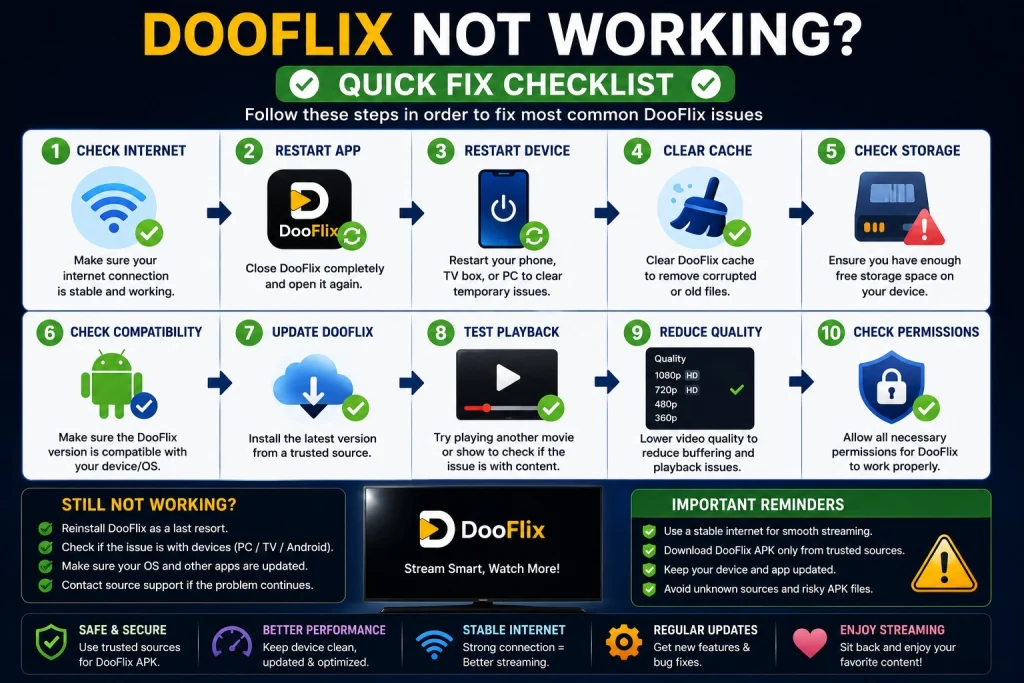
DooFlix Troubleshooting Quick Checklist
When DooFlix is not working, go through this checklist:
- ✅ Check your internet connection.
- ✅ Restart DooFlix.
- ✅ Restart your device.
- ✅ Clear the application cache.
- ✅ Check available storage.
- ✅ Verify Android compatibility.
- ✅ Check the application version.
- ✅ Test another title.
- ✅ Reduce video quality if buffering occurs.
- ✅ Review permissions.
- ✅ Check TV or PC compatibility.
- ✅ Verify the APK source before reinstalling.
Safety When Troubleshooting DooFlix
Be careful when troubleshooting APK-based applications.
You should not disable Android, Windows, antivirus, or other important security protections simply because an installation or application problem occurs.
Before installing another APK:
- Verify its source.
- Check the version.
- Review the file information.
- Scan suspicious files when appropriate.
- Review requested permissions.
- Keep your device software updated.
A different APK is not automatically a solution to a technical problem, and downloading files from random websites can introduce additional security risks.
Frequently Asked Questions
Why is DooFlix not working today?
There can be several reasons, including internet problems, application compatibility, playback-source issues, outdated software, or device-specific errors. Start by checking your connection and restarting the application.
Why does DooFlix keep buffering?
Buffering is commonly related to an unstable connection, high video quality, network congestion, or playback-source problems. Try lowering video quality and checking your connection.
Why is my DooFlix APK not installing?
The APK may be incompatible, corrupted, incomplete, or blocked by Android’s installation settings. Check compatibility, storage, file integrity, and installation permissions.
Why does DooFlix crash when I open it?
Possible causes include an incompatible version, insufficient resources, corrupted cache, or an application problem. Restart the device, clear cache, and check compatibility.
Why is DooFlix showing a black screen?
Check your internet connection, restart the application, clear its cache, and verify that the installed version supports your device.
Why is DooFlix search not working?
Check your connection, try a simpler search term, and restart the application. If other features work normally, the problem may be specific to search.
Why are DooFlix subtitles not showing?
Subtitle availability varies by title and source. Check the playback settings and confirm that subtitles are available for the selected content.
Why is DooFlix not working on my PC?
If you are running an Android APK on Windows, check the Android-compatible environment, PC resources, APK compatibility, and internet connection.
Why is DooFlix not working on Android TV?
Check the TV’s internet connection, storage, application cache, Android version, and whether the installed version is optimized for Android TV.
Final Thoughts
When DooFlix is not working, avoid immediately deleting the application or downloading another APK. Start with the basics: check your internet connection, restart the application and device, clear the cache, check storage, and verify compatibility.
For installation problems, examine the APK and its source carefully. For playback problems, test your connection, video quality, and available playback options.
If you are using DooFlix on a specific platform, our dedicated guides for Android, PC, Windows, and Android TV can help you troubleshoot issues based on your device.